Install and first run
Vyrux is one Splunk app. You install it once, and it works for every person who has a Vyrux role.
Install it
- In Splunk Web, open Apps, Find more apps.
- Search for Vyrux Security and click Install. Sign in with your splunk.com account when asked.
- Restart Splunk if it asks.
In Splunk Cloud, install it from the same page, or ask your Splunk admin. To install from a file instead, open Apps, Manage Apps, Install app from file and choose the package.
Where to install it
- Splunk Enterprise: install it on the search head your security team uses. Use the package for Splunk 10.4 and later, or the one for Splunk 10.3 and earlier.
- Splunk Cloud with Enterprise Security: install it on the Enterprise Security search head. The correlation searches live there, so that is the only place Vyrux can read and fix them. The ad hoc search head does not see them.
- Search head clusters: every member shows the same server ID, so one activation code covers the whole cluster.
Give people access
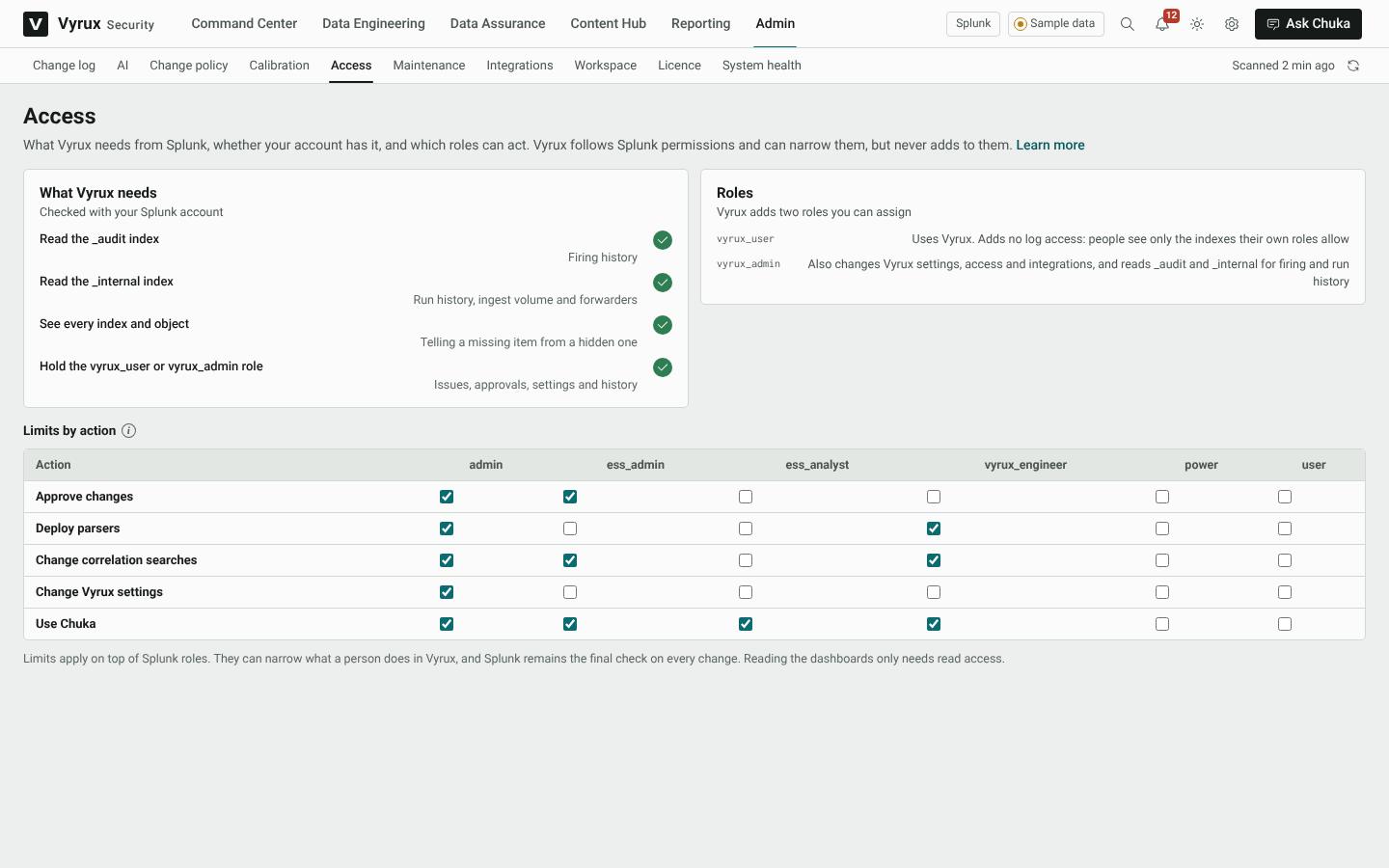
Vyrux adds two roles. Splunk stays in charge: a person can never do more in Vyrux than their own Splunk account allows.
| vyrux_user | Uses Vyrux and sees only the indexes their own Splunk roles allow |
| vyrux_admin | Also changes Vyrux settings, access and integrations, and reads _audit and _internal for firing and run history |
A person without either role sees a short message that asks them to request access. They see no data.
First run
- Open Vyrux Security from the Splunk app menu.
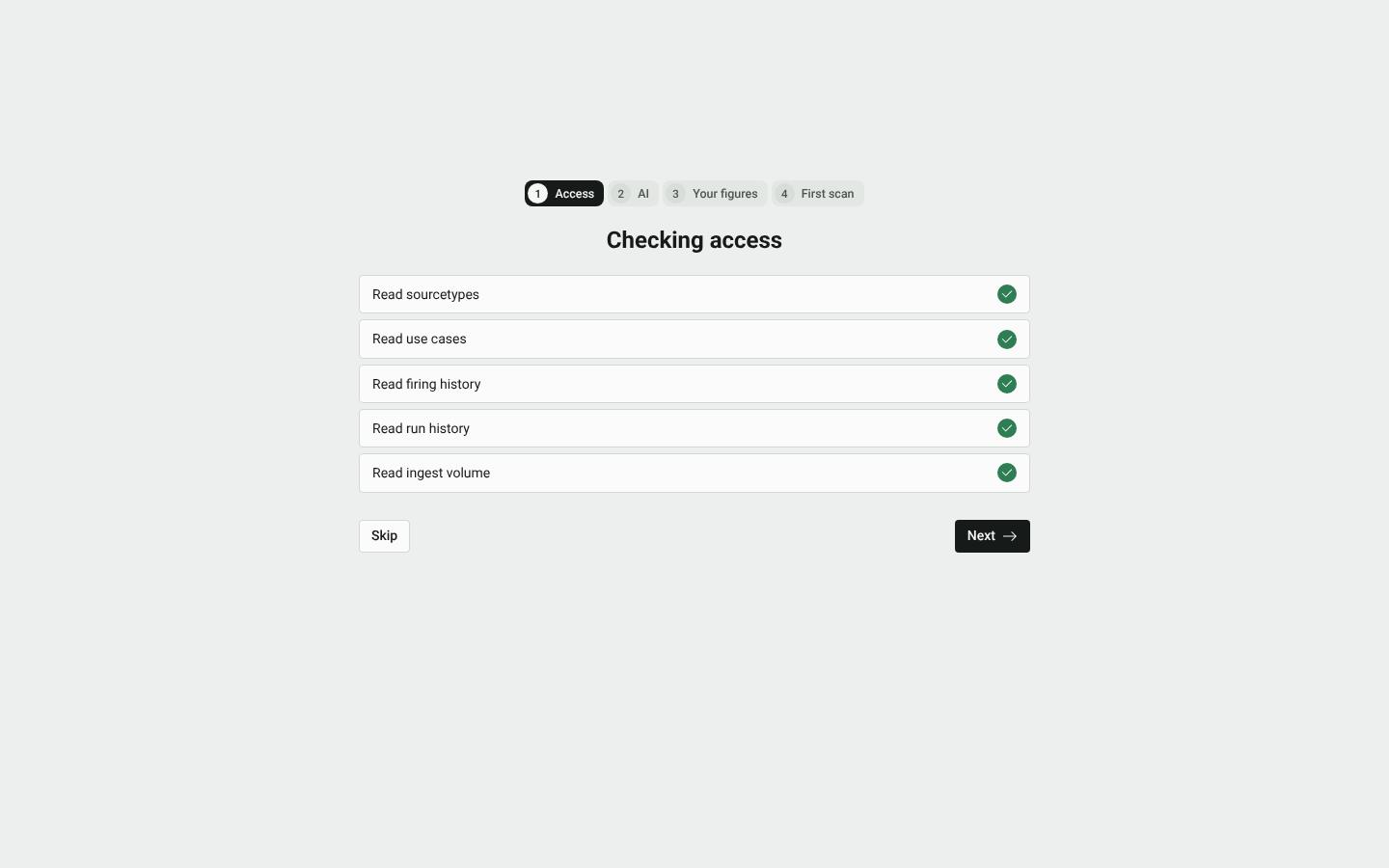
- Setup checks that your account can read sourcetypes, use cases, firing history, run history and ingest volume. A missing permission is named, with what it limits.
- Set your own figures: the cost of a GB of logs and the analyst time per alert. Every money and hours figure in Vyrux comes from these.
- The first scan runs. It takes from a few seconds to a few minutes, depending on the size of your deployment.