System health and search capacity
System health confirms what Vyrux can reach, what the last scan read and how long each read took, and whether the background scan is running. Copy diagnostics gives support everything they need in one paste.
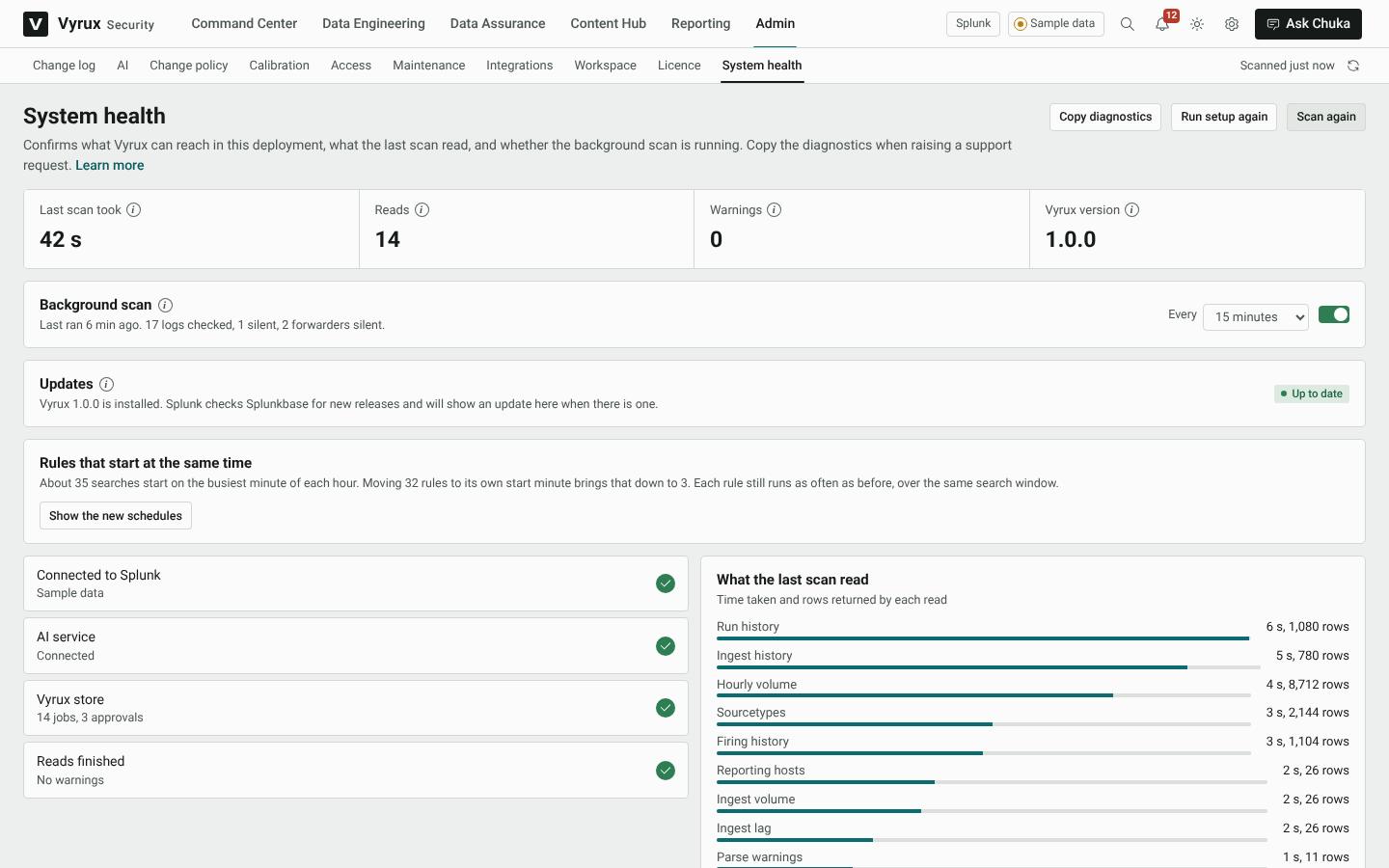
Updates
New releases of Vyrux are published on Splunkbase. Splunk checks for them by itself, and Updates shows the version installed and whether a newer one is available.
- Go to Admin, System health and look at Updates.
- If a new version is available, click Open Manage Apps.
- Click Update next to Vyrux Security. In Splunk Cloud, the same page installs Splunkbase updates, or your Splunk admin can do it for you.
- Your settings, history and kept reports stay as they are.
Rules that start at the same time
Splunk can run only so many searches at once, based on the number of CPU cores. Rules written as every 5 minutes all start on the same minutes, so they queue for the same slots and Splunk skips some of them. Data model accelerations queue for those slots too.
Vyrux finds this and proposes a start minute for each rule. A rule that ran every 5 minutes still runs every 5 minutes, over the same search window. Only the minute it starts on changes.
- Go to Admin, System health.
- Under Rules that start at the same time, click Show the new schedules to see each rule, its schedule now and the one proposed.
- Click Send for approval, or Apply if your team does not need a second approver.
- Each moved rule gets its own entry in the change log, so any one can be rolled back.